CarsDemo
CarsDemo a real-world example of print documents generated with content from the Pimcore demo. They show the integration into Pimcore and usage of an arbitrary data model.
Overview
| Project | Content DataObjects | Content Selection | Chapters | Single- / Facing Pages |
|---|---|---|---|---|
| Car List | Car |
Categories from path products/cars or Manufacturer |
✅ | Both |
| Car Detail | Car |
Categories from path products/cars or Manufacturer |
✅ | Both |
| Car Sales Label | Car |
Manufacturer or Car |
❌ | Single |
| Accessory List | AccessoryPart | Categories from path products/spare parts or Manufacturer |
✅ | Both |
| Accessory Price List | AccessoryPart | Categories from path products/spare parts or Manufacturer |
✅ | Both |
Content Selection
Car Content
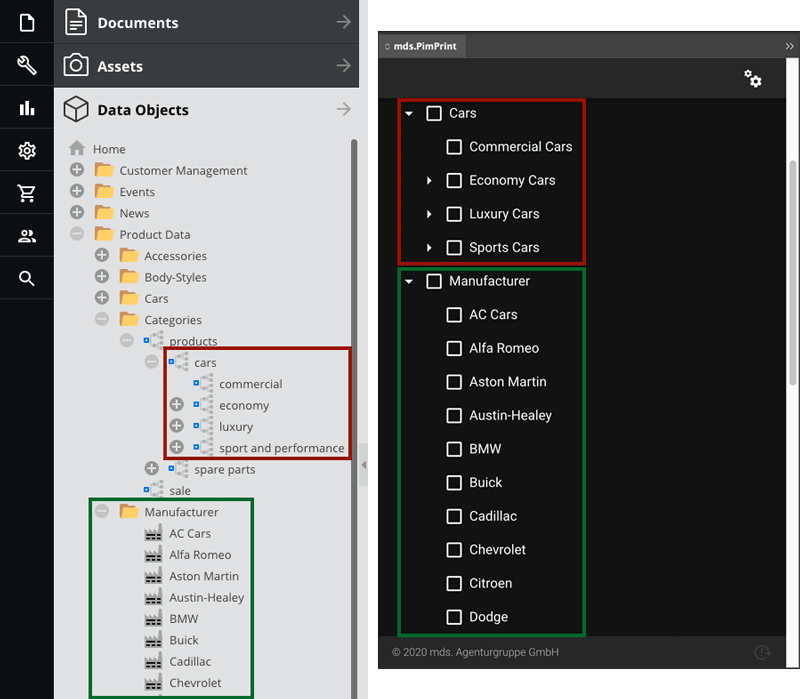
Car DataObject centric print products can be generated for Categories DataObjects from path products/cars or Manufacturer DataObjects. The Pimcore DataObject structures are
transformed
to a publication tree.
Accessory Content
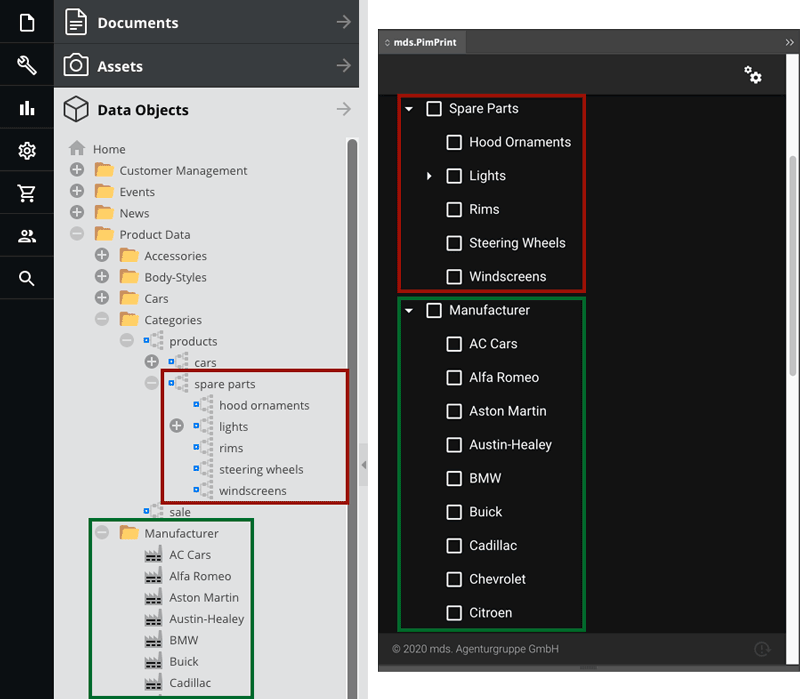
AccessoryPart DataObject centric print products can be generated for Categories DataObjects from path products/spare parts or Manufacturer DataObjects. The Pimcore
DataObject structures are
transformed to a publication tree.
PimPrint Features
Comprehensive Document update
After generation process PimPrint creates a textbox on first page outside page margins at top left position on a non-printable layer called PimPrint Update-Info. This textbox
contains information regarding the generated publication, language, generation timestamp, etc. PimPrint uses this textbox to
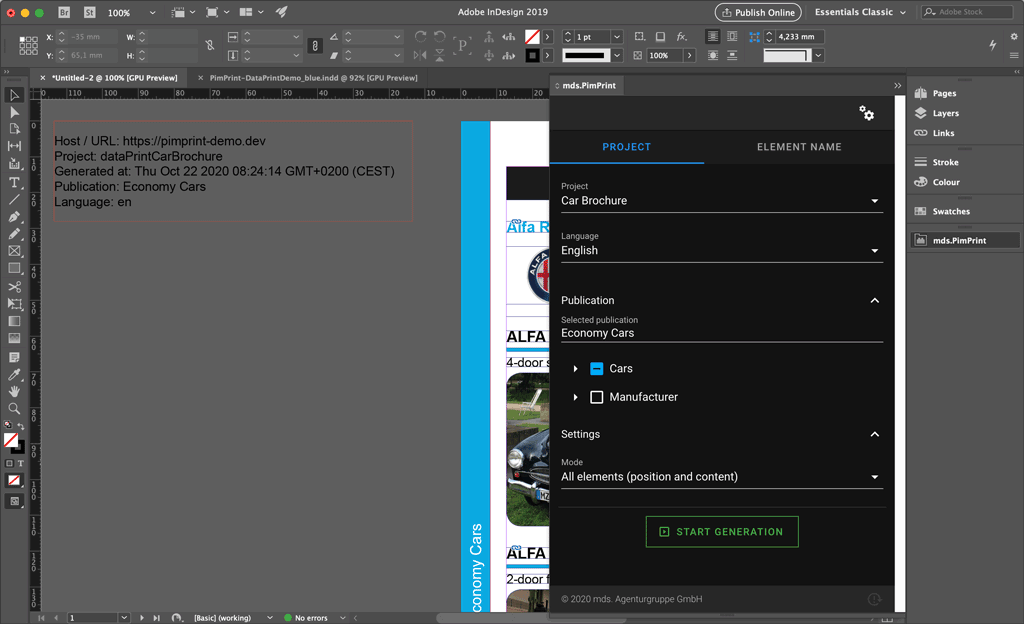
PimPrint uses this textbox to identity the publication and content generated into the document. When a document with this textbox is opened, or plugin is reloaded, the rendering settings for the current document are automatically preselected. This allows fast content update of a previously generated document.
To try this out, you need a generated demo document, edit content in the Pimcore admin interface, and generate (update) the already generated document. An example use-case would be:
- (Un)Publish some cars or car variants
- Edit descriptive texts
- etc.
Go back to InDesign click the Start Generation button.
This will start a content update of the previously generated document.
After generation is finished, the content in the document will be updated with the current data in the Pimcore database. PimPrint uses the InDesign Articles panel to display
comprehensive feedback of the update generation process. Click on Window > Articles to open the Articles panel.
| Article | Documentation |
|---|---|
PimPrint-Deleted |
Elements that has been removed in the update process. In addition to the Article a layer with the same name is created and all elements are moved to it. Is set to invisible automatically. |
PimPrint-Updated |
Element content was updated. |
PimPrint-Created |
New created elements. |
Changing the Template
The InDesign template file used by CarsDemo renderings can be changed in the Pimcore admin interface.
This is an example use-case how the user can change the used template file manually or changing programmatically depending on the selected content. This basic concept can be used for different szenarios.
Website Settings
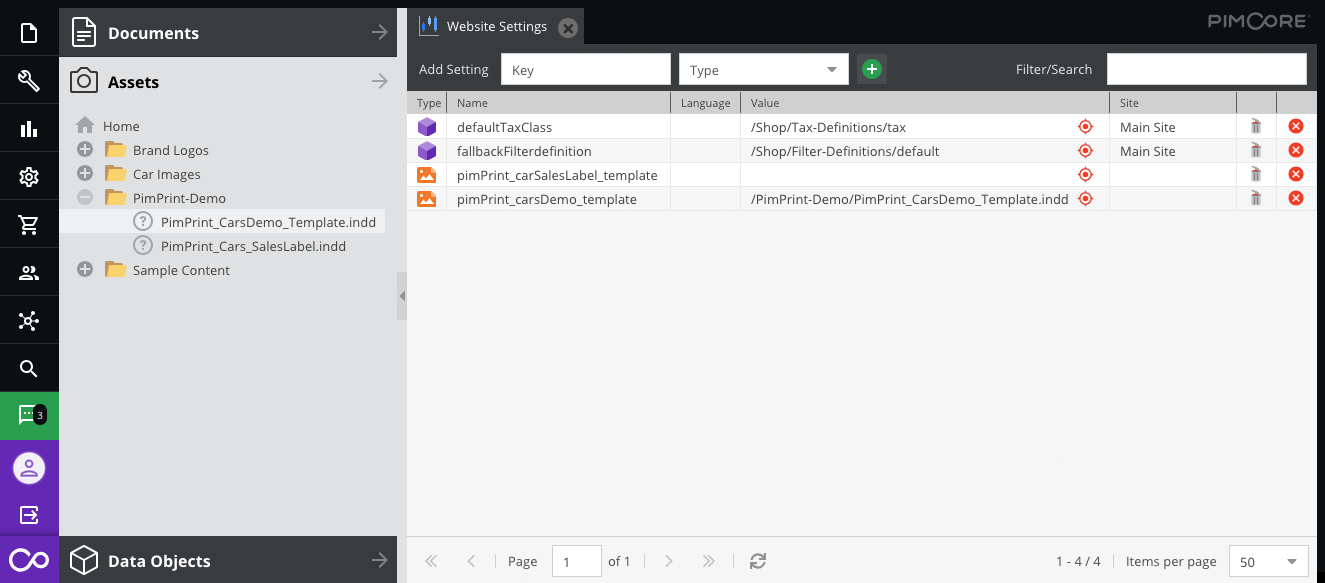
Global changes to templates via Website Settings:
| Website Setting | Documentation |
|---|---|
pimPrint_carsDemo_template |
Changes the template of all renderings except for Car Sales Label |
pimPrint_carSalesLabel_template |
Changes the template of the Car Sales Label rendering |
Predefined Property
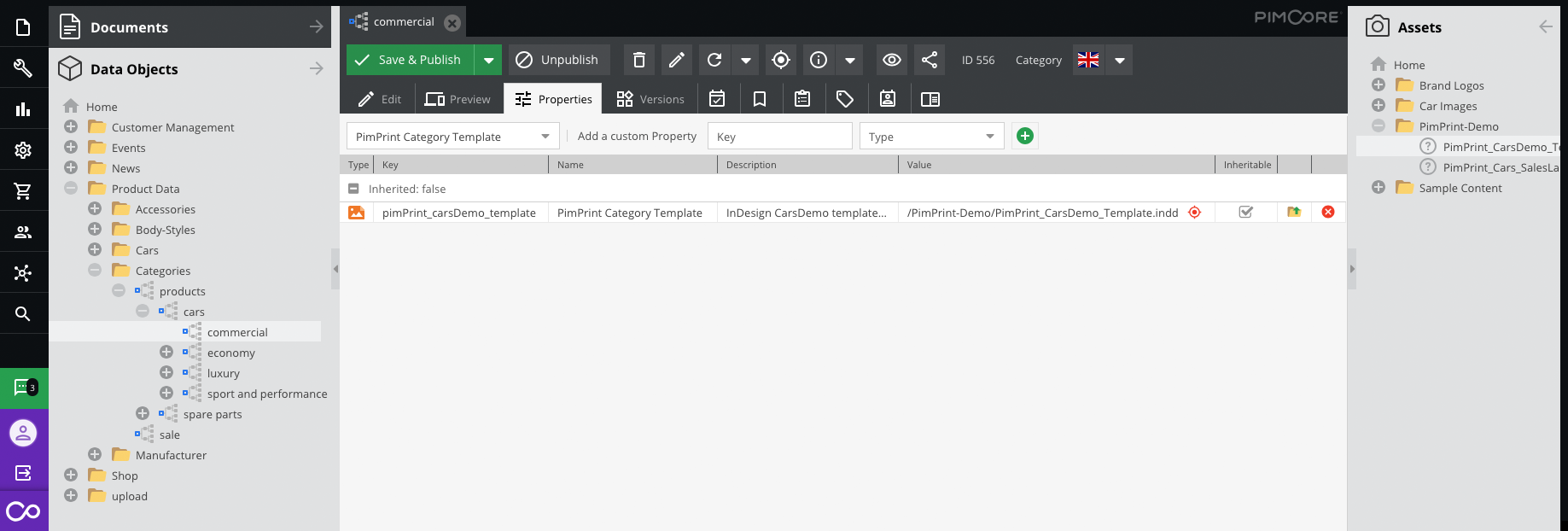
As an example of content-dependent template modification, the predefined property pimPrint_carsDemo_template “PimPrint Category Template” can be assigned to Category DataObject.
Renderings for this category use the respective template.
Technical note
The InDesign template file can be changed by overwriting the methodgetTemplate():\Mds\PimPrint\DemoBundle\Project\CarsDemo\AbstractCarsDemoProject::getTemplate()
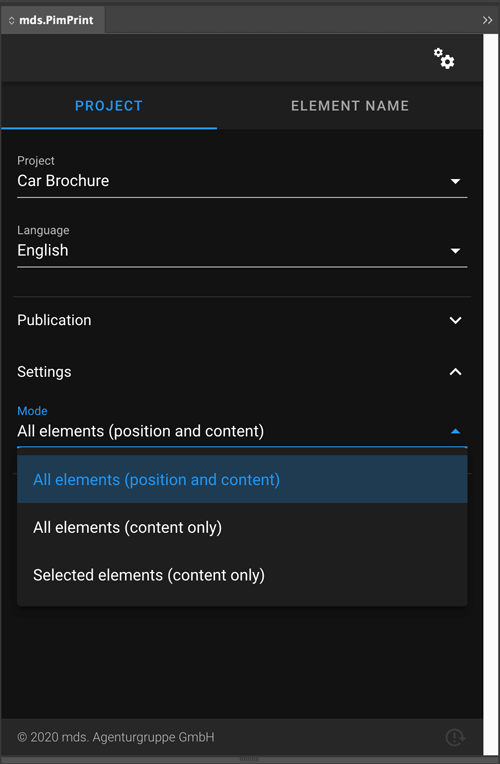
Render Modes
PimPrint offers different render modes.
| Mode | Documentation |
|---|---|
Generate |
Generates or updates elements to position send from server and sets content sent from server. |
Update |
Sets content sent from server in all elements. Leaves element positioning and dimensions untouched. AbstractBox command fits are executed as sent from server.. |
Update selected |
Sets content sent from server into selected elements. Leaves element positioning and dimensions untouched. AbstractBox command fits are executed as sent from server. |
Generate language variants |
Generates or updates elements for language variants to position from the master-language and sets content sent from server. |
Update language variants |
Sets content sent from server for language variants in all elements. Leaves element positioning and dimensions untouched. AbstractBox command fits are executed as sent from server. |
Generate language variants positions |
Updates positions for language variants in all elements to the position from the master-language. |
Update selected language variants |
Sets content sent from server for language variants in selected elements. Leaves element positioning and dimensions untouched. AbstractBox command fits are executed as sent from server. |
Generate selected language variants positions |
Updates positions for language variants in selected elements to the position from the master-language. |